1) You can install the free Teams app from your app store for smartphones, or go to www.Teams.com for computers, to download Teams for Windows OS, Chrome OS, Linux OS, and Mac OS for free. Next, use your mobile phone number or a Microsoft email address to create your Teams account.
2) When you've installed Teams on your phone or computer, in Teams go into "Settings" → "General", turn on "Automatically start Teams", "Launch Teams in the background", and "On close, keep Teams running" so we can ring you when we start.
4) When you first go to our Teams group video sessions, be sure to allow Teams to access your device's camera and microphone: without this, Teams won't work properly! If you want to conserve Internet usage, you can turn off your camera during recording.
An advantage of using Teams is that anyone with the above group link can join the group *anytime* to watch the recorded sessions. Group members can also type chat messages in our "chat" area *anytime* and it's "persistent" – it stays around between video sessions, which lets us text-chat with our Morning Prayers group anytime. You can, of course, have private "chat" or voice and video calls with us or others: use their Teams name or send them an invitation if they don't have a Teams account yet.
Here's How To Set Up and Manage Your Own Meeting in Teams:
(You are free to right-click or press Ctrl-U (on a PC) on this web page. on https://agape-biblia.org/Morning-Prayers.htm and on https://agape-biblia.org/daily-prayers.htm, then copy the HTML source code, save ands and modify it or translate the English text into your language. All of the HTML programming and setup instructions are already done for you!)
This is using Teams' installed version on a PC or a Mac. (The web app, smartphone, and tablet apps do not have all the settings to create and manage a Teams "Calendar Meeting.") Connect your computer to your Internet router by cable, if possible, to give you the fastest signal. But if you use WiFi, be sure you have a strong WiFi signal, otherwise your video might be choppy or drop the call entirely.
1. Click the "Calendar" icon in the right column, then selectNew Meetingusing the button on the left. You'll be the meeting leader and add members. Give it a name such as "Morning Prayers and Readings" (plus a version number, such as "v3", etc.). Make it a recurring daily meeting, not just a one-time meeting.
2. When you add members to your meeting, that name will appear in Teams's members' list. Teams will generate your meeting's link similar to ours above. To add people who aren't in your email address book, select the group name you've just created, then select "Share link to join group" and Teams will help you send email messages to those people, or you can send your Teams link by another way, such as by text message or posting the link on social media.
3. Teams then opens a window to let you search for people in your address book to add to your group. When finished, select the "Done" button in that window. You can have up to 100 people in your meeting using the free version of Teams, but Teams will only ring them or send a notification message if you have 20 or fewer people in your meeting, so it's best to keep your Teams meeting to 20 or fewer members. If members go inactive, send them a private message asking if they want to continue; if not, delete them sp you can add new members.
4. Press Ctrl-U or right-click (on a PC) to view and make a copy of the HTML code in this file so you can modify our invitation message – the "Morning-Prayers.htm" file and this setup file – changing them to your meeting's name and link, set the time for your local time, and send the invitation with your Teams link for your group in email messages or post it on social media.
Here's How To Run an Online Meeting in Teams
1. Open Teams to your meeting on the moderator's computer at least 3 minutes before your announced start time and turn on the mic. If necessary, close all other apps and other browser tabs except for "Daily Prayers." (This will free up your computer's electronic memory [RAM], so your computer isn't slowed down by "paging" – writing unneeded content to the hard drive and then reading it back into memory: this will help your recording from becoming "choppy." It's because electronic memory that works at almost the speed of light is 1,000 times faster than the hard drive!)
2. Next, open the web page for reading the "Daily Prayers" now, 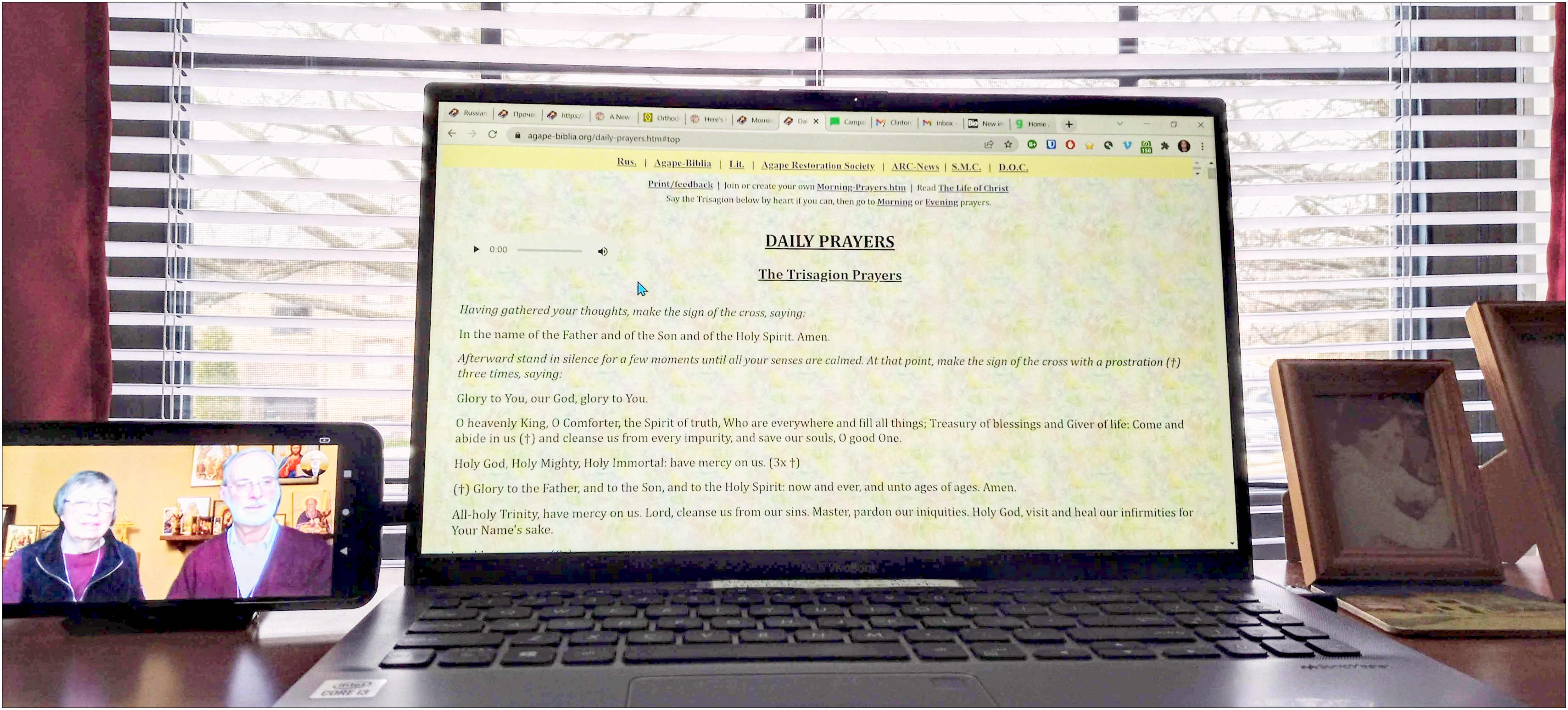 so you won't need to do it when it's time to share that screen in Teams (see also step 7), like in this photo of our setup in our bedroom "recording studio." Notice that we've cut a piece circular of paper over our $20 lamp's bulb to soften the light shining on our faces. We bought this $33 external mic because the PC built-in mic's sound quality was poor in our recordings.
3. Press Alt-Tab to switch to the "Morning Prayers" window in Teams, check the mic volume level, send a chat to your group that you're starting the video session, and click the "Join" button in the upper-left part of the screen. Then "Pin" your image to the screen! Adjust the camera angle of your PC screen, the mic and lamp to be sure things will look right on other people's screens. Be sure to set "Share computer sound" in Screenrec before you start the recording. Presss Alt-S and define the portion of the screen to record, then click the Screenrec "camera" to start the recording. Smile, silently count to five, and look directly at the main screen's camera, instead of looking away from the camera as you record the session.
4. After Teams has sent the message to all group members, click "Join" to start the recording: we use the free version of the "Screenrec" app. Then switch to the "Daily Prayers" web-page in your browser to read from the moderator's device, as long as your camera and mic in Teams continue to run. We share our "Daily Prayers" screen right from when we start on Sunday, Tuesday, and Friday so that people will be able to read the prayers with us: press Ctrl-plus to increase the font size to 150% so it's readable on members' small smartphone screens, and remind them to hold their phones horizontally, in "landscape mode," to see the text larger.
5. On Monday, Wednesday, Thursday and Saturday, we let the viewers see us as we read the Morning Prayers from the first 4 pages in our "Morning and Evening Prayers" 28-page booklet. I've also prepared a special version of the first 4 pages for podcasts with a prompt at the top: "(On Mon.-Wed.-Thu.-.Sat., cue up Saints & Scripture Readings, then read from here.) to remind you on which days you should cue up the "new cal." or "old cal." links located after Psalm 51 in the "Morning Prayers" section, to display the Saints & Scripture Readings on your "Daily Prayers" screen before you go online in Teams and start recording. This is optional, but it provides some variation.
6. Welcome people to your group! If more guests join the group after you begin recording, remind them to turn off their microphones to avoid feedback while you're recording. Screenrec stores your recordings online – at least 30 days worth of 30-minute recordings. You can also download each daily session from Screenrec and upload to a video server such as Substack, YouTube, Vimeo, or share the link on your Google Drive, newsletter, blog, etc.
7. On the days that you read from the printed Morning and Evening Prayers, to share what you'll be reading from "Lives of the Saints and Scriptures" in the middle of a call, scroll down on our "Morning Prayers" web page just past Psalm 51 to the links for "new cal." and "old cal." before you start the call so you're at the right place when you share "Lives of the Saints, etc.! Next, click Teams's "Share" button and locate the correct browser tab, then click on that window to see what you're sharing so that you can read it, scroll it, etc Remind your guests to hold their smartphones horizontally (in landscape mode) so they can see the. text larger, because your PC's screen is always in landscape mode. When you're finished sharing, press "Stop sharing."
8. When you're done with the prayers and Scripture readings, stop the recording, then ask your guests to turn on their mics so we can all visit with each other for a few minutes. "Unpin" your video so you can see everyone's faces better, and when you're finished visiting, click the red hang-up button to the call. Click the "folder" icon in Screenrec to download the recording, copy the link for the recording, and post the link on your Teams "Morning Prayers" meeting so no-shows can watch it later.
It took us months of trial-and-error to refine this procedure, so "practice makes perfect." Let us know if it's unclear or if you have any issues with it!